In this post, we'll explore how to build a landing page using Strapi. We'll dive into the Content-Type Builder and see how to construct a landing page using single types with components and dynamic zones. We will be replicating the newsroom landing page in Strapi.
The Building Blocks: Components
Before we work with our single type, we're going to create the components. These components will later be stitched together inside of a dynamic zone in order to create our single type page, which will provide the data to power this landing page. Below is the breakdown of the components we will be creating:
- A header with a title and subtitle.
- A title component used in a few different places.
- Two buttons constituting a call to action.
- A list of articles.
- Info cards near the bottom of the page.
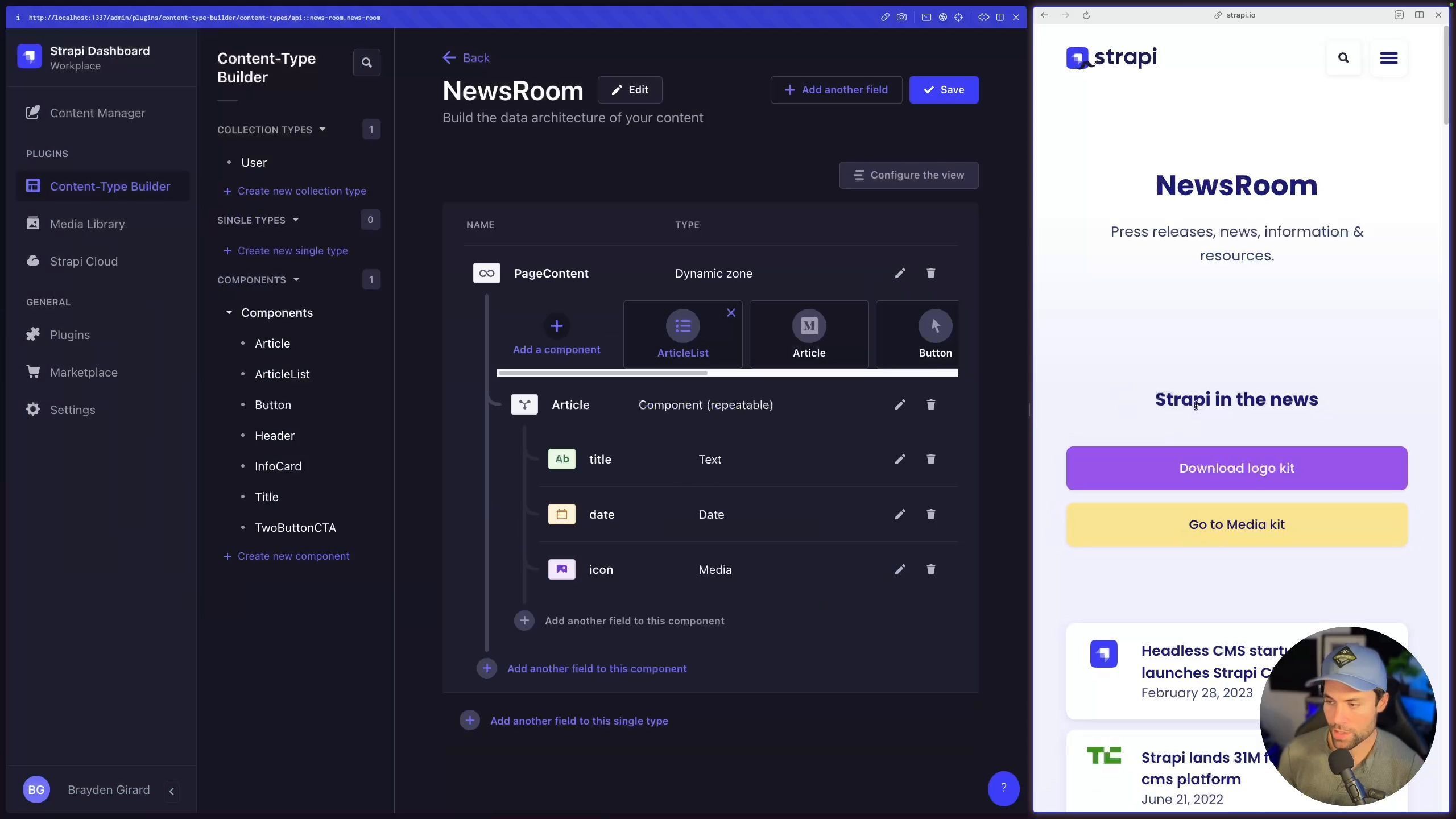
Let's start building the components, one by one.
The Header Component
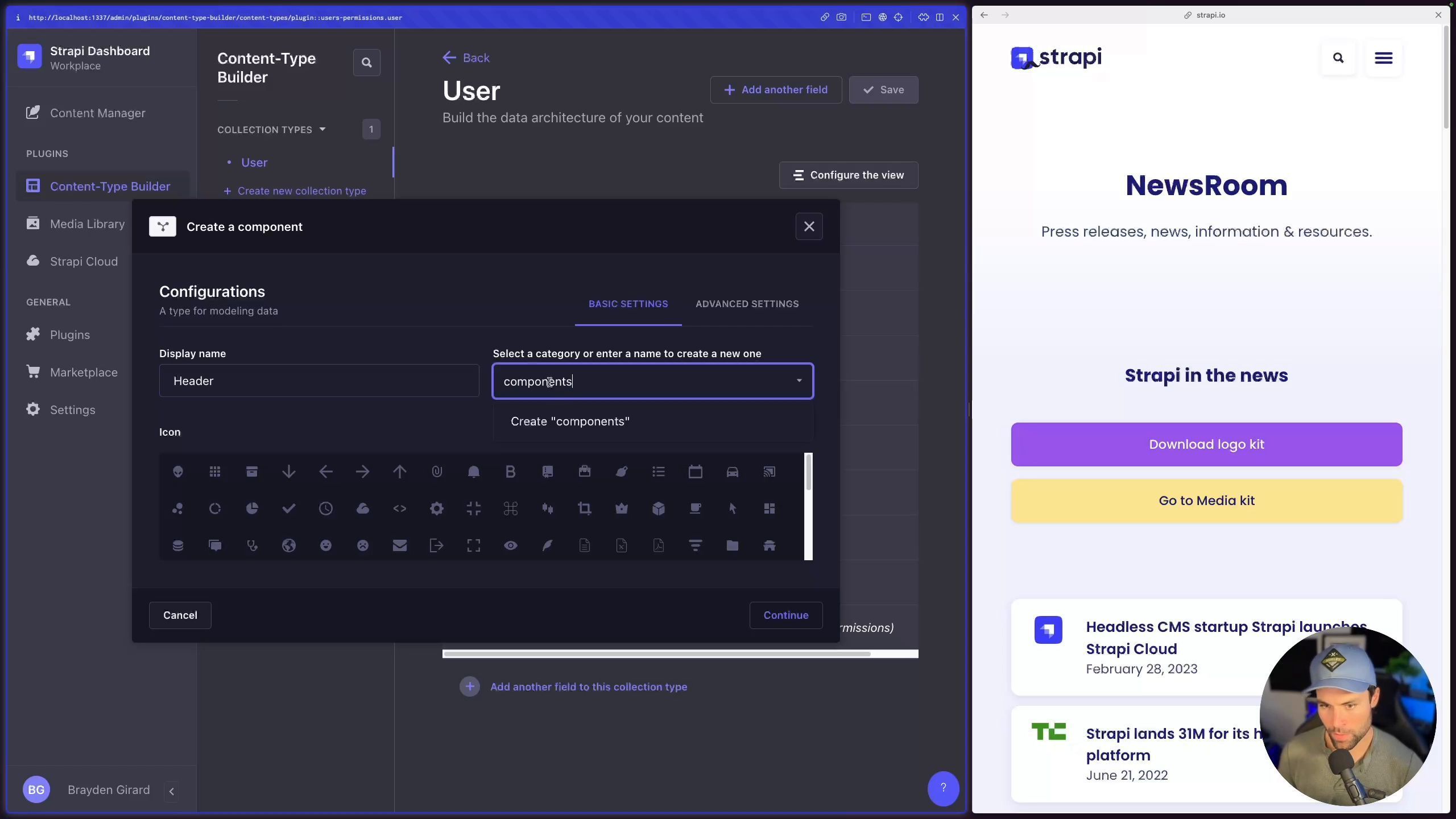
Starting with the header, we'll create a new component called Header. This component will have two text fields: title and subtitle.
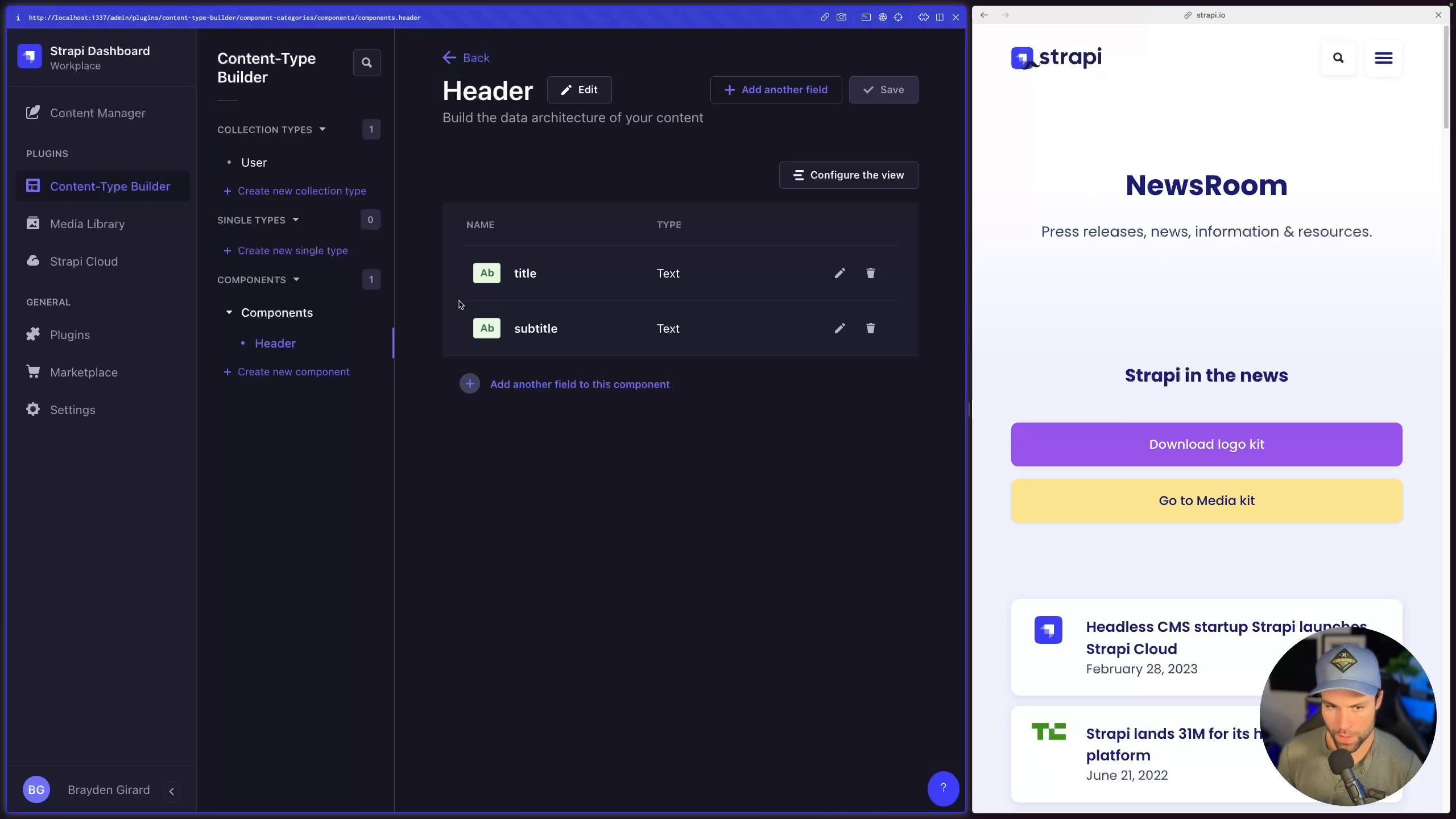
Once done, the new Header component should appear in the Components tab. Save it and move onto the next one.
The Title Component
Since our landing page reuses the title in different places, we'll create a Title component. This will simply be a text field named title.
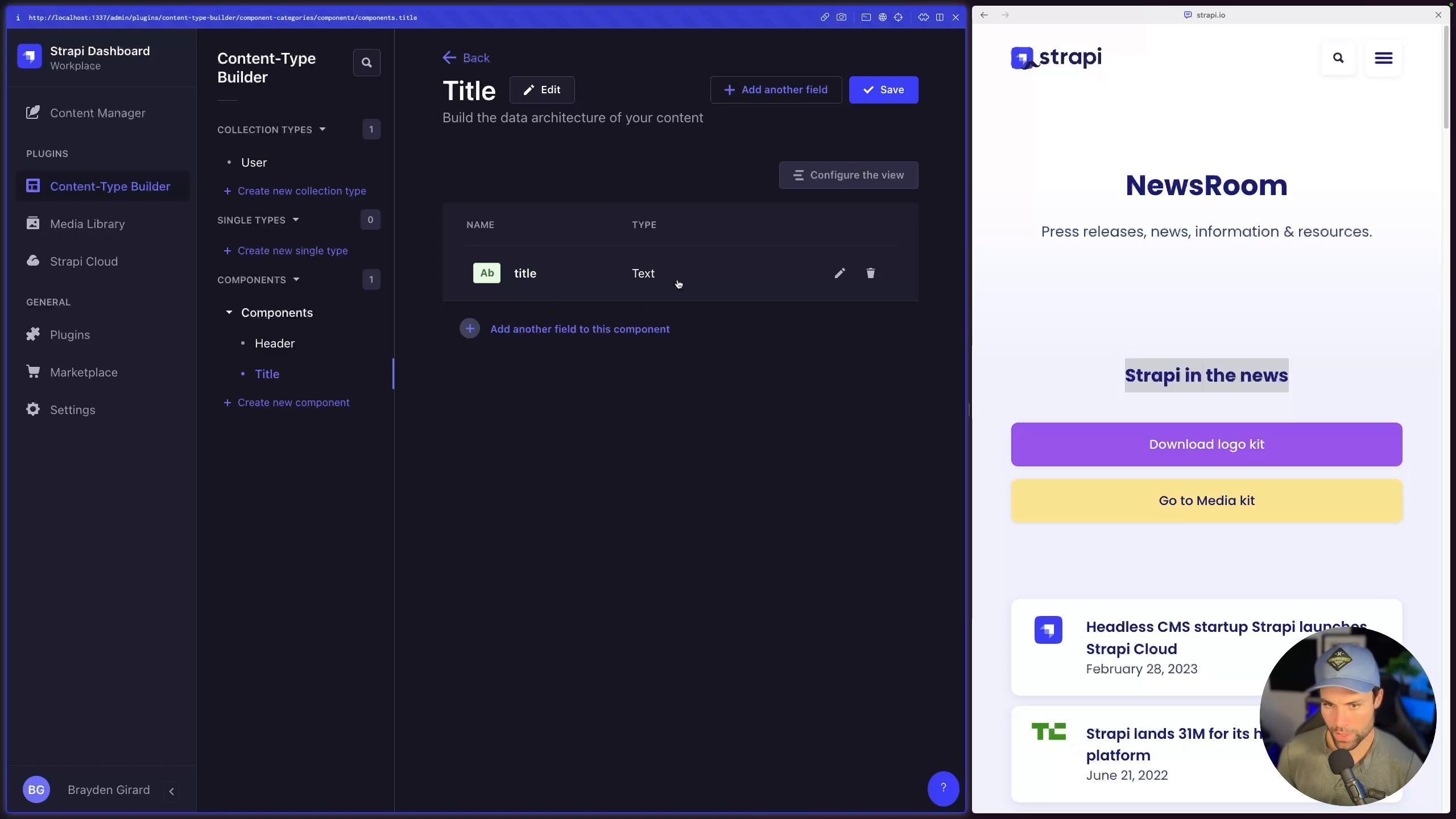
After saving this, we proceed to create the third component, which is the call to action with two buttons.
The Two Button CTA Component
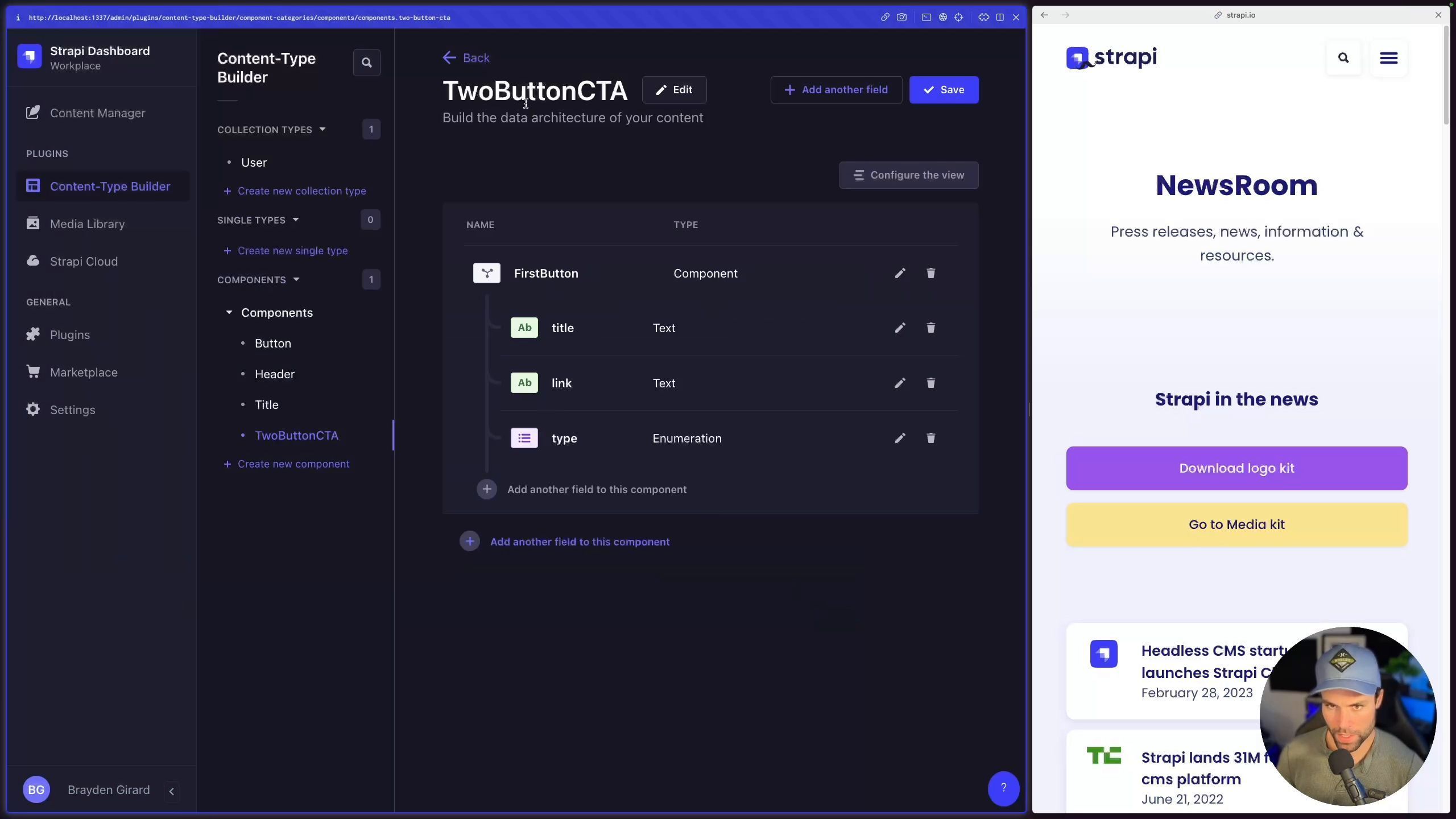
To create this dynamic call to action component we will create two button components nested inside of a parent component. To do this, we'll create the parent TwoButtonCTA with two components: FirstButton and SecondButton. Each button will have a Title, Link, and an Enum (Primary, Secondary, Outline, Outline Icon). The Enum enables us to easily style the buttons later on.
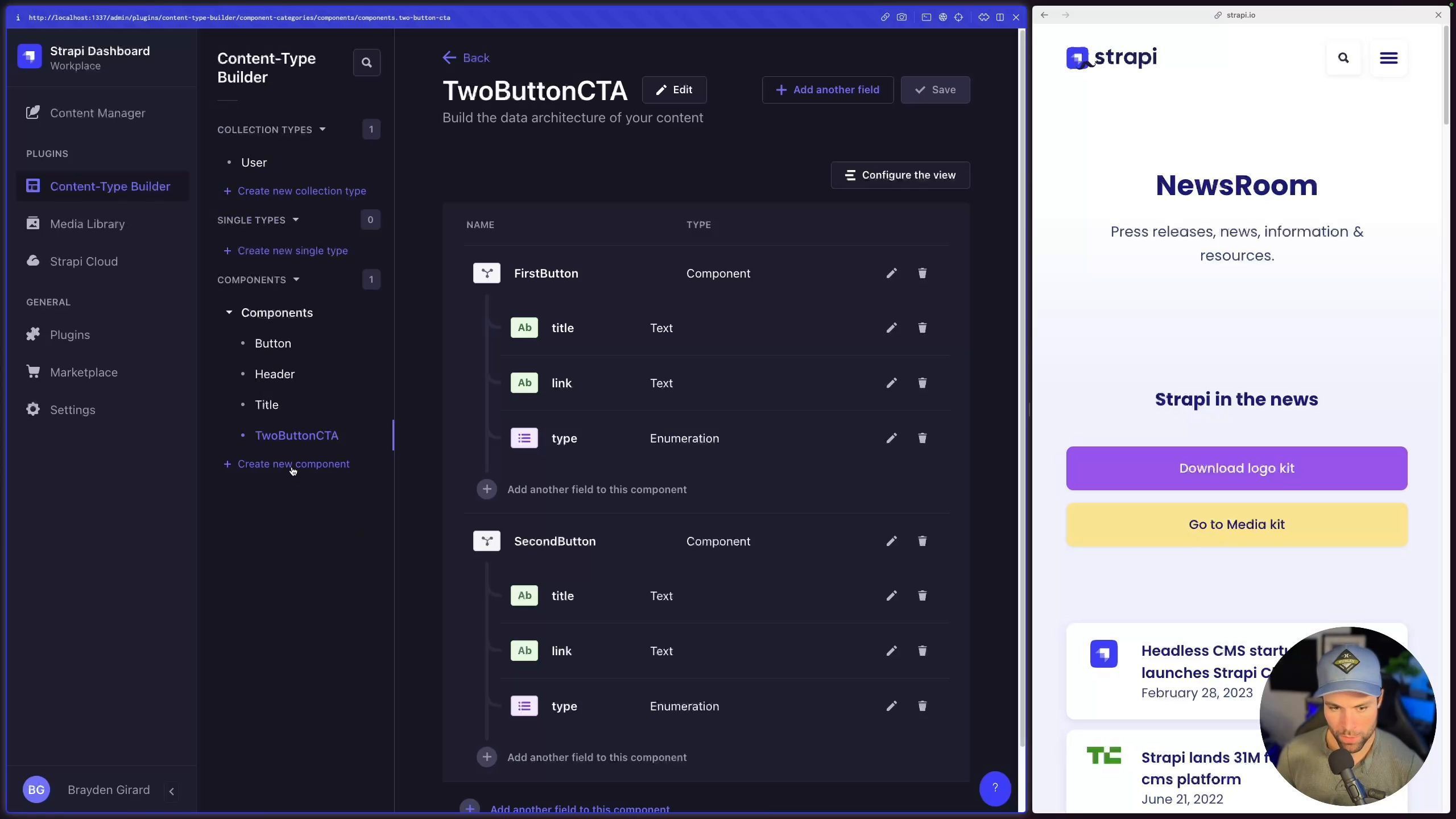
Saving our TwoButtonCTA creates both FirstButton and SecondButton automatically as separate components.
The Article List Component
We now move onto creating an ArticleList component. This will hold multiple Article sub components, which themselves will include a Title, Date, and an Icon (Media Field). This entire structure forms the skeleton of the article section on the landing page.
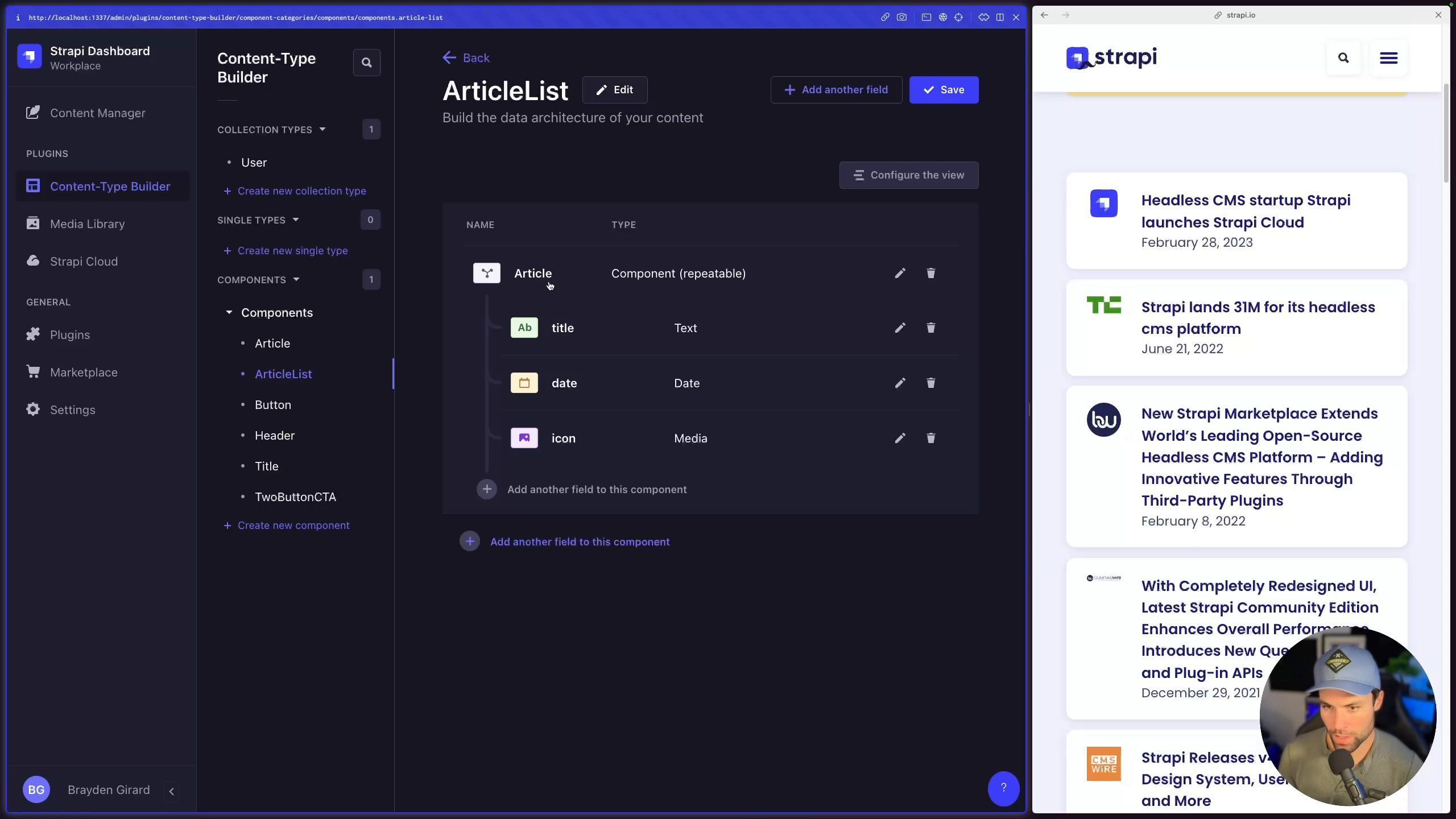
Saving our ArticleList automatically generates the subcomponent Article for us, making these components reusable in future pages.
The Info Card Component
Our final component is the InfoCard. Here, we need to include a Title (Text), Image (Media), Description (Long Text), and Background (Enum). Additionally, we'll attach an existing Button component as CTA button.
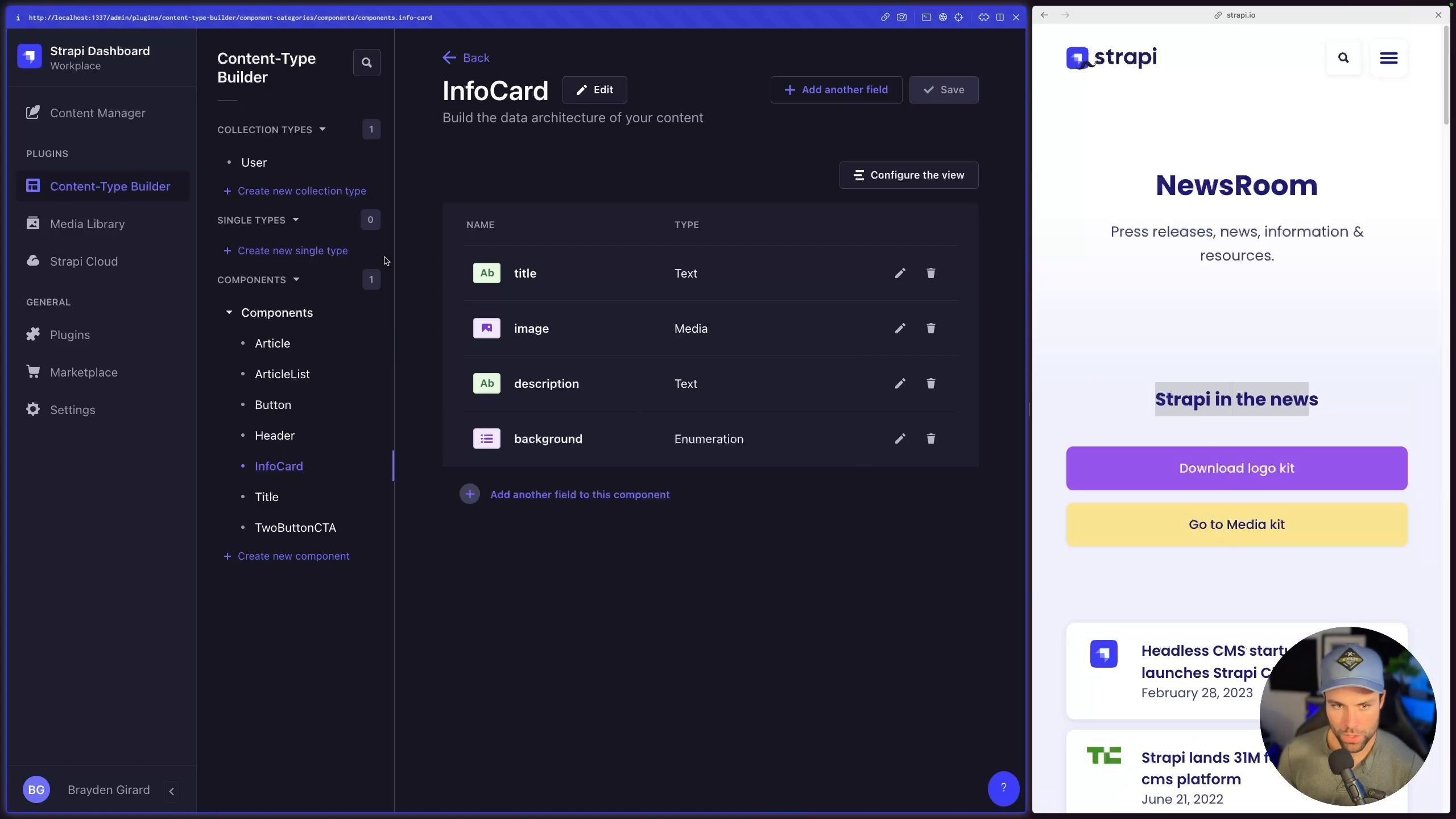
This is the last component that we needed to create.
Building the Landing Page: Creating our Single Type
With our components ready, we will build the Newsroom single type page. Here, we leverage Strapi's feature of dynamic zones.
Adding a dynamic zone called PageContent, to our Newsroom single type allows us to add all our created components. This gives content editors the flexibility to use these components in any order they prefer, omitting some, arranging some, and styling based on the enumerations we've set up.
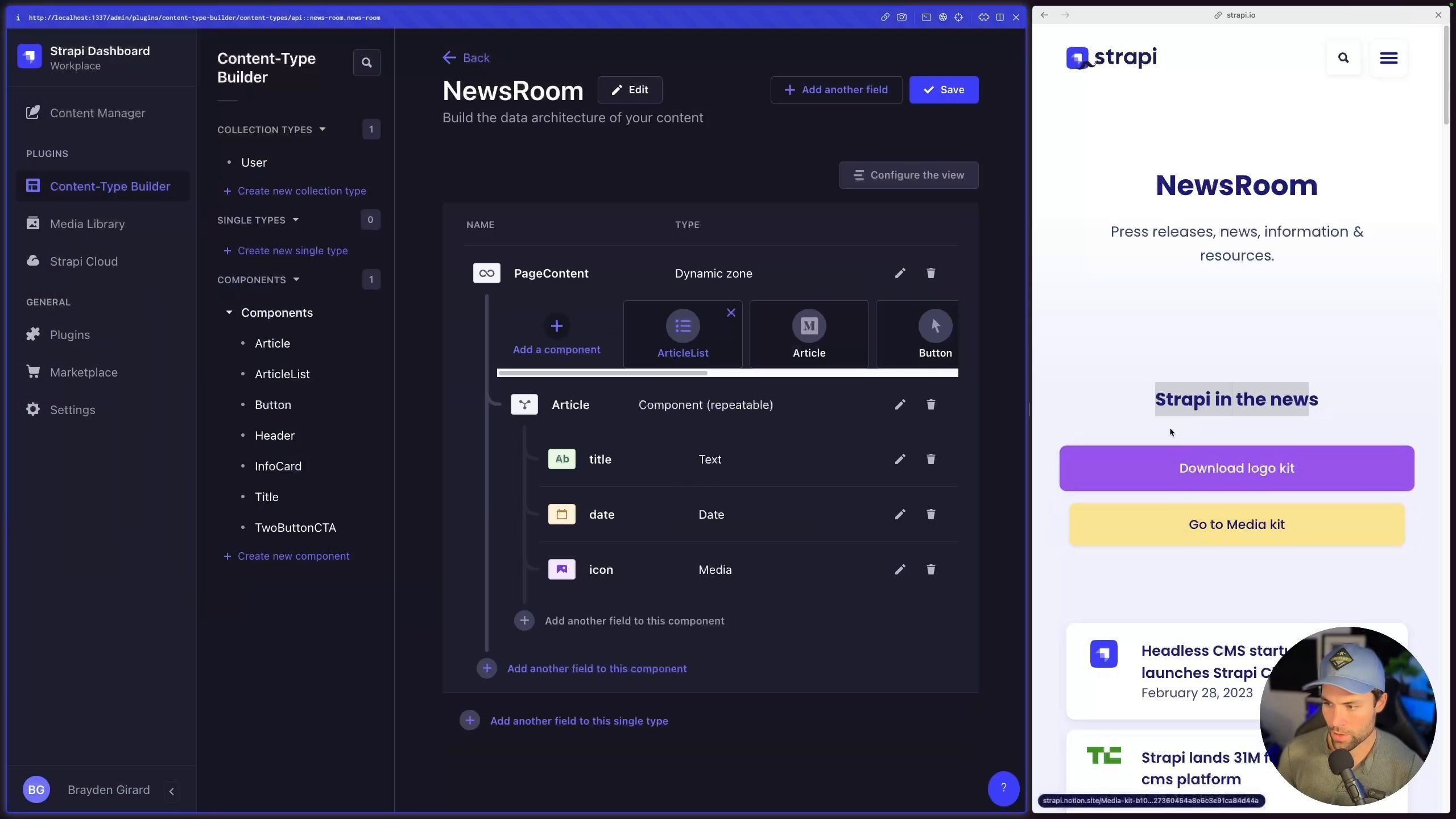
With this done, a content editor can construct the Newsroom page. They can add any number of Article components inside an ArticleList. They can specify a date, title, and icon for each Article added. Similarly, they can add any number of InfoCard components, each with their unique title, image, description, background color, and button.
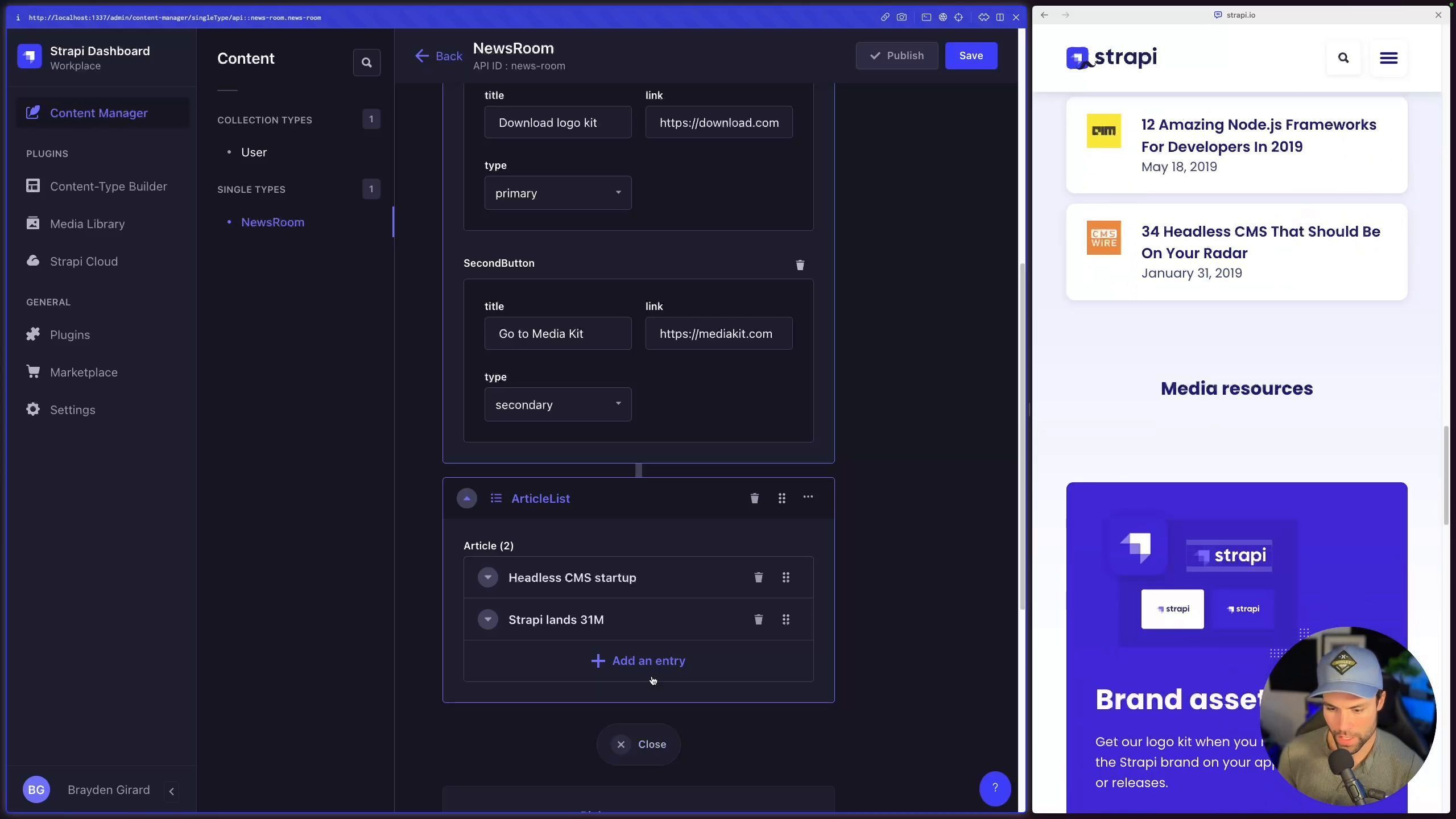
In this step-by-step guide we illustrated the power of Strapi's content type builder. We've gone from multiple simple Components to creating a dynamic single type page. The key to this is the use of dynamic zones. This feature provides flexibility, allows for the rearrangement, styling, and adding/removing sections from the single type page, enabling you to build intuitive, user-friendly interfaces.
You can checkout out the video walk though here